How to Back Up Your Chats in GB WhatsApp
Backing up your chats in GB WhatsApp can help you preserve conversations, photos, videos, and other message history before changing phones or reinstalling the app. The available backup options may vary depending on the version you use.
Before making changes to your app, create a backup if the feature is available and verify that the backup files are stored safely.
Why Back Up GB WhatsApp Chats?
A chat backup can help you keep important conversations and media files when troubleshooting app problems or moving to another device. However, a backup created by an unofficial modified app may not be compatible with the official WhatsApp application or another GB WhatsApp version.
For this reason, do not uninstall the app or delete its data until you have checked that your backup exists.
How to Back Up Chats in GB WhatsApp
Follow these steps if your installed version provides a local backup option:
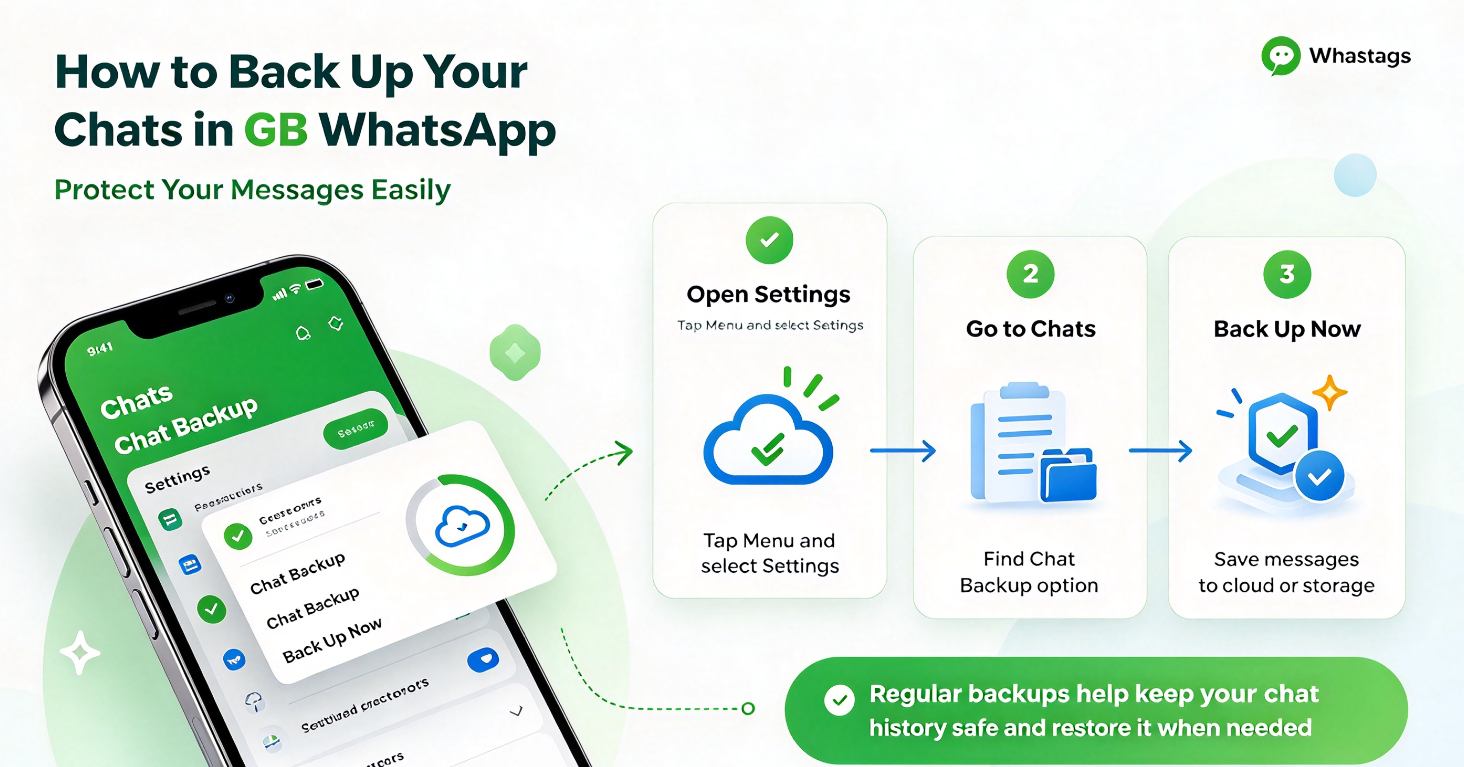
- Open GB WhatsApp on your Android phone.
- Tap the three-dot menu in the upper-right corner.
- Open Settings and look for Chats.
- Select Chat Backup or the equivalent backup option available in your version.
- Tap Back Up to start creating a backup.
- Wait for the process to finish.
- Check the app’s storage folder or backup screen to confirm that the backup was created.
Menu names and storage locations can differ between releases. If you cannot find these options, check the app’s help information before moving or deleting any files.
How to Back Up GB WhatsApp Media Files
Chat backups may not include every media file in the way you expect. To protect important photos, videos, voice messages, and documents, check whether they are stored locally on your phone.
- Open your phone’s file manager.
- Look for the GB WhatsApp media folder in the app’s storage directory.
- Check for folders containing images, videos, documents, and voice messages.
- Copy important files to a secure location, such as a computer or external storage device.
On newer Android versions, app folders may be restricted or stored in different locations. Avoid deleting unfamiliar folders before confirming what they contain.
How to Restore a GB WhatsApp Chat Backup
Restoration depends on the backup format and the version of the app.
- Confirm that your backup files are available before reinstalling anything.
- Install the compatible app version, if you decide to reinstall.
- Follow the app’s available restore instructions.
- Check whether your previous conversations and media appear after restoration.
A local backup does not guarantee that chats can be restored in another version. Restoring a GB WhatsApp backup into official WhatsApp may not work, so do not rely on this method without checking compatibility first.
GB WhatsApp Backup Problems and Fixes
Backup Is Not Completing
Check your available storage space, close unnecessary apps, and try again. If the problem continues, avoid clearing app data until you have secured any existing backup files.
Backup File Cannot Be Found
Use your phone’s file manager to inspect accessible app storage folders. Android storage restrictions may hide certain directories, and folder paths can vary by version.
Chats Are Missing After Restoration
Confirm that you restored the correct backup and used a compatible app version. An incomplete or incompatible backup may not restore all conversations or media.
Can I Use a GB WhatsApp Backup in Official WhatsApp?
Compatibility is not guaranteed. Modified apps may use different backup formats or storage arrangements. Check the current official migration and restore options before switching apps, and preserve a separate copy of your existing files.
Frequently Asked Questions
Does backing up GB WhatsApp save photos and videos?
It depends on the backup method and settings. Check your media folders separately to ensure important files are preserved.
Where are GB WhatsApp backups stored?
The location varies by version and Android release. Check the backup screen or accessible app storage folders on your device.
Can I transfer my GB WhatsApp chats to a new phone?
You may be able to transfer local backup files, but successful restoration depends on the app version, backup format, and Android storage permissions.
Should I back up chats before updating GB WhatsApp?
Yes, creating and verifying a backup first is a sensible precaution. Keep a separate copy of important files in case the update fails.
Is it safe to back up chats in GB WhatsApp?
A backup can help prevent data loss, but it does not eliminate the privacy and security risks associated with unofficial modified apps. Protect backup files because they may contain sensitive conversations and personal information.
Important: GB WhatsApp is an unofficial third-party modification and is not affiliated with WhatsApp or Meta. Use caution when installing APK files or transferring chat data, and never delete your only backup before confirming that your conversations can be restored.