GB WhatsApp for PC/Windows: How to Install It on Your Computer
Want to use GB WhatsApp on a Windows PC?
You can, but there is one important thing to understand first: GB WhatsApp does not have a native Windows application. It is an Android APK, so Windows cannot run the APK directly.
The practical solution is to use an Android emulator.
The emulator creates an Android environment on your computer, allowing you to install and run the same GB WhatsApp APK you would normally use on an Android phone.
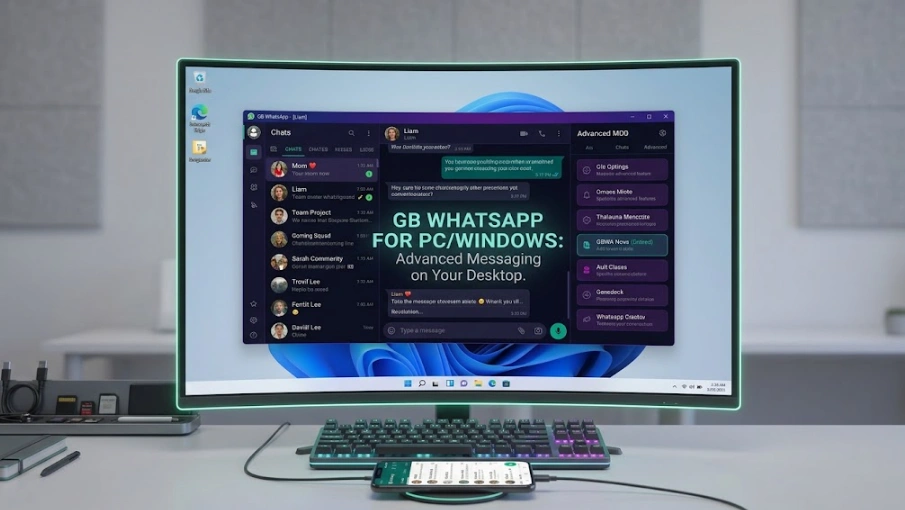
How to Install GB WhatsApp on Windows
Getting GB WhatsApp running on a PC is fairly straightforward once you have an Android emulator installed.
1. Install an Android Emulator
First, install a reputable Android emulator on your Windows computer. BlueStacks and LDPlayer are two commonly used options.
The emulator is what allows Windows to run Android applications. You don’t need a special emulator made specifically for GB WhatsApp; you simply need one that supports Android APK installation.
2. Download the GB WhatsApp APK
Download the GB WhatsApp APK you want to use and save it somewhere easy to find, such as your Windows Downloads folder.
Make sure you are downloading an APK rather than a Windows .exe file. GB WhatsApp itself is an Android application.
3. Install the APK in the Emulator
Open your Android emulator and look for its APK installation option.
For example, BlueStacks allows you to install an APK using its Install APK tool or by dragging the APK file directly into the emulator window.
Select your GB WhatsApp APK and wait for the installation to finish.
4. Open GB WhatsApp
Once installed, the GB WhatsApp icon should appear in the emulator’s Android environment. Click it to launch the app.
You’ll see the Android version of GB WhatsApp rather than a separate Windows interface.
5. Set Up Your Account
Follow the on-screen instructions to enter and verify your phone number.
If you’re moving from another GB WhatsApp installation, back up important chats and media before changing installations. Don’t assume that your existing chat history will automatically appear in the emulator.
Why Do You Need an Emulator for GB WhatsApp?
The reason is simple: GB WhatsApp is built for Android, not Windows.
An APK is an Android application package. Windows doesn’t normally provide the Android environment required to run that type of application.
An Android emulator fills that gap:
Windows PC → Android Emulator → GB WhatsApp APK
You’re therefore not converting GB WhatsApp into a Windows application. The emulator is providing the Android environment, while GB WhatsApp remains an Android app running inside it.
This is different from the official WhatsApp Windows app, which is specifically designed for desktop use. WhatsApp currently provides a native Windows application, while GB WhatsApp does not.
Which Android Emulator Should You Use?
You have several Android emulators to choose from. For most users, the choice comes down to compatibility, performance, and how comfortable the interface feels.
| Emulator | Suitable For | Installation |
|---|---|---|
| BlueStacks | Beginners and general use | APK supported |
| LDPlayer | Users who want another lightweight option | APK supported |
| NoxPlayer | General Android use | APK supported |
You don’t need to install all three. Pick one, install it on Windows, and test GB WhatsApp there.
If your computer feels slow after starting the emulator, check its resource settings and close unnecessary Windows applications. Performance can vary depending on your PC hardware and the emulator version.
What Is Actually Running on Your PC?
It helps to understand what happens behind the scenes.
When you open GB WhatsApp on your Windows computer, you’re not using a special “GB WhatsApp PC version.” Instead, the setup looks like this:
Your Windows PC
Provides the hardware, display, keyboard, mouse, and operating system.
Android Emulator
Creates an Android environment inside Windows.
GB WhatsApp APK
Runs inside that Android environment.
This is why you can use your keyboard to type messages and your mouse to navigate chats while still seeing the Android version of GB WhatsApp.
It also explains why downloading a random file called something like GBWhatsApp.exe is not the normal installation method. Be cautious with websites claiming to offer an “official GB WhatsApp Windows installer.”
Can You Use Your Existing GB WhatsApp Account on PC?
You can set up GB WhatsApp in the emulator using a phone number, but the emulator should be treated as a separate Android environment rather than simply an extension of your phone.
If you want to keep existing conversations, create a backup before switching between installations. Chat restoration can depend on the backup method, app version, and compatibility of the installation you’re moving to.
Do not uninstall your current GB WhatsApp just to test the PC version. Make sure you have the backup you need before removing or changing anything on your phone.
If your main goal is simply to access your normal WhatsApp chats from a Windows computer, the official WhatsApp desktop solution is a different and simpler setup.
What Can You Do With GB WhatsApp on Windows?
Running GB WhatsApp through an emulator gives you a larger screen and a physical keyboard while keeping the Android version of the app.
For example, you can:
- Type longer messages more comfortably with a keyboard.
- View conversations and media on a larger display.
- Keep GB WhatsApp open while working with other Windows applications.
- Use the privacy and customization options available in your GB WhatsApp build.
- Manage chats without constantly picking up your phone.
The main benefit isn’t that GB WhatsApp gains special “PC features.” You’re simply using the Android app in a larger desktop environment.
GB WhatsApp on PC vs WhatsApp Desktop
This is where many users get confused. GB WhatsApp running through an emulator and official WhatsApp Desktop are two different things.
| GB WhatsApp on PC | Official WhatsApp Desktop | |
|---|---|---|
| Native Windows app | No | Yes |
| Android emulator required | Yes | No |
| Runs an Android APK | Yes | No |
| GB WhatsApp features | Yes | No |
| Official WhatsApp app | No | Yes |
| Official WhatsApp support | No | Yes |
| Setup | More steps | Simpler |
If you simply want to use WhatsApp on your Windows computer, the official desktop app is the easier option. WhatsApp provides a Windows desktop application and also supports WhatsApp Web.
If you specifically want to use GB WhatsApp and its modified features, however, an Android emulator is the relevant method because it lets you run the Android APK itself.
Is GB WhatsApp Safe to Use on a PC?
Using an emulator doesn’t change the fact that GB WhatsApp is a third-party modified application.
There are several things to consider before installing it:
Download the APK carefully.
Avoid unknown APK sources and check the version and file information before installing.
Choose your emulator carefully.
Download the emulator from its legitimate source rather than using a modified installer from an unfamiliar website.
Be careful with fake PC versions.
GB WhatsApp is an Android APK, so an unknown .exe claiming to be the “official GB WhatsApp for Windows” should be treated cautiously.
Protect your chats.
Back up important conversations and media before switching versions or installations.
Account restrictions are still possible.
Running GB WhatsApp through an emulator doesn’t remove the risks associated with using a modified WhatsApp client.
If account stability and official support are your priorities, the official WhatsApp application remains the more straightforward choice.
GB WhatsApp Not Working on Windows?
Having trouble after installation? Start with these common fixes.
GB WhatsApp won’t install
Make sure the emulator supports APK installation and that the APK file is complete. Try downloading the APK again if the installation fails unexpectedly.
The emulator is running slowly
Close unnecessary Windows programs and check the emulator’s performance settings. Older or lower-powered computers may struggle with some Android emulators.
GB WhatsApp crashes
The problem may be related to the APK build or emulator compatibility. Try a compatible version of GB WhatsApp or check whether a newer build is available.
The verification code doesn’t arrive
Check that your phone number is correct and that your phone can receive the required SMS or call. Don’t repeatedly request codes if the service temporarily limits verification attempts.
My chats aren’t showing
Don’t immediately uninstall or reset the emulator. Check whether you created a backup and whether that backup is compatible with the GB WhatsApp version you’re using.
Can You Use GB WhatsApp on Windows 10 or Windows 11?
Yes. The important requirement is not a special GB WhatsApp Windows version, but an Android emulator that works correctly on your Windows installation.
Your experience will also depend on your computer’s processor, available RAM, storage, graphics capability, and emulator settings.
If your PC can comfortably run the chosen Android emulator, you can use that environment to install the GB WhatsApp APK.
Frequently Asked Questions
Is there an official GB WhatsApp for Windows?
No. GB WhatsApp is an Android-based modified application rather than a native Windows desktop app. To run it on Windows, you generally need an Android emulator.
Can I install GB WhatsApp directly on Windows?
No. A normal Windows installation cannot directly run an Android APK. You need an Android environment, such as an emulator, to run the APK.
Can I install GB WhatsApp without an emulator?
Not as a native Windows application. Be cautious with websites offering an “official GB WhatsApp for Windows” .exe file.
Which emulator is best for GB WhatsApp?
There isn’t one universal best choice. BlueStacks, LDPlayer, and other compatible Android emulators can provide the Android environment needed to run an APK. Choose one that works well with your PC.
Is GB WhatsApp the same as WhatsApp Desktop?
No. WhatsApp Desktop is an official Windows application from WhatsApp. GB WhatsApp is a modified Android application that needs an Android environment to run on a PC.
Can I use the same phone number on GB WhatsApp on PC?
You can use a phone number to set up GB WhatsApp in the emulator, but don’t assume your existing chats will automatically transfer. Back up important data before changing installations.
Final Thoughts
GB WhatsApp can be used on a Windows PC, but there is no need to look for a separate “GB WhatsApp Windows APK.” The app remains an Android APK, and an Android emulator provides the environment needed to run it on your computer.
If you want the convenience of a larger screen and keyboard while keeping the GB WhatsApp experience, the emulator method is the practical approach. If you simply want official WhatsApp on your PC, the native Windows app is easier to install and is officially supported by WhatsApp.