Why GB WhatsApp Pro Backup Fails and How to Fix It
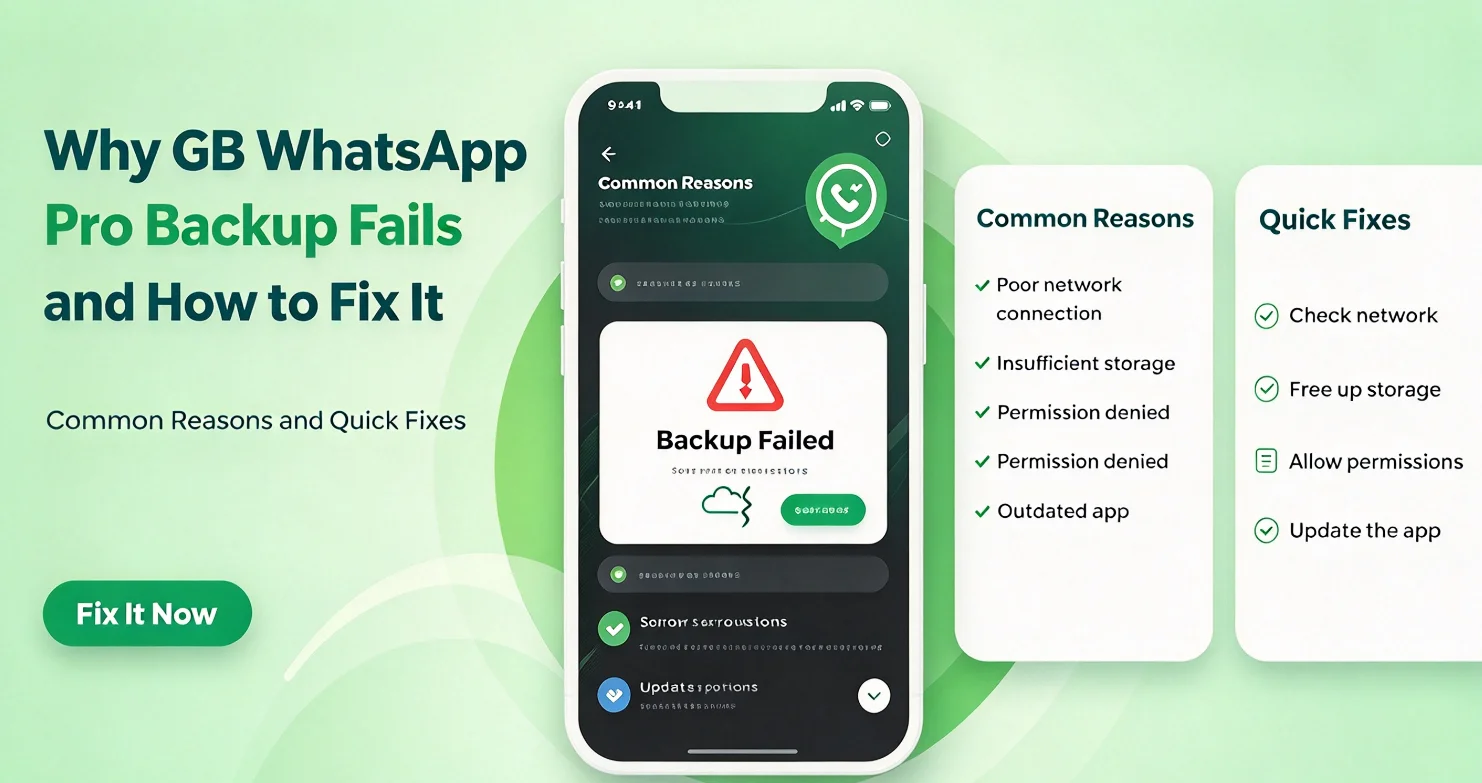
GB WhatsApp Pro backup failures can happen when your phone has insufficient storage, the app cannot access its files, or the backup process encounters an error. Problems may also occur after updating the app or changing Android devices.
If your chat backup is stuck, fails to complete, or does not create a usable file, try the troubleshooting steps below before reinstalling the app.
Why Does GB WhatsApp Pro Backup Fail?
Several common issues can prevent GB WhatsApp Pro from creating a backup.
1. Not Enough Storage Space
A backup needs enough free storage to save chat databases and potentially associated media files. If your phone is nearly full, the process may stop or fail.
How to fix it:
- Check your phone’s available storage.
- Remove unnecessary downloads or duplicate media files.
- Keep enough free space for the backup to complete.
Avoid deleting GB WhatsApp folders unless you have confirmed that they do not contain your only backup.
2. Storage Permission Problems
Android may restrict an app’s access to files, especially after an operating system update or when installing a different app version.
How to fix it:
- Open your phone’s Settings.
- Go to Apps and select GB WhatsApp Pro.
- Open Permissions.
- Review any available file, photo, or video permissions.
- Grant only the permissions necessary for the backup feature.
The available permission names depend on your Android version.
3. Corrupted or Missing Backup Files
Existing backup files may be incomplete, damaged, or stored in a location the app can no longer access. This can happen after moving folders or changing app versions.
How to fix it:
- Check whether previous backup files still exist.
- Keep a separate copy of any usable backup.
- Avoid overwriting your only working backup until you have confirmed that a new one can be created.
4. GB WhatsApp Pro Version Problems
A modified app may have backup bugs or compatibility issues following an update. Different releases may also use different storage paths.
How to fix it:
- Check whether the backup option is available and working in your installed version.
- Review the app’s settings and any available error messages.
- Before updating or reinstalling, copy existing backup files to a safe location.
Do not assume that installing a newer APK will automatically repair an existing backup.
5. Android Background or System Restrictions
Battery optimization, system cleanup tools, or storage management features may interrupt a backup process.
How to fix it:
- Keep the app open while the backup runs.
- Connect your phone to a charger if the process takes a long time.
- Avoid running aggressive cleanup tools during the backup.
- Restart your phone if the process repeatedly freezes.
6. Google Drive Backup Is Not Available
If you are trying to back up GB WhatsApp Pro to Google Drive, the feature may not be supported or may not work like the official WhatsApp backup system.
Check which backup method your installed version actually provides. Do not assume that a local backup can be uploaded to or restored from Google Drive automatically.
How to Fix GB WhatsApp Pro Backup Failed
Try the following steps in order:
- Check storage space. Make sure your phone has enough free space.
- Restart the app. Close and reopen GB WhatsApp Pro.
- Review permissions. Check whether the app can access the files required for backup.
- Check the backup location. Confirm that existing backup files are still accessible.
- Create a separate copy. Protect important chat databases and media before making further changes.
- Retry the backup. Keep the app open and avoid interrupting the process.
If these steps do not work, record the exact error message and check whether the problem began after an app or Android update.
Important: Do not clear app data, uninstall GB WhatsApp Pro, or delete its folders as an initial troubleshooting step. These actions could permanently remove conversations that have not been backed up successfully.
Frequently Asked Questions
Why is GB WhatsApp Pro backup stuck at 0%?
Possible causes include insufficient storage, restricted file access, or an app error. Check storage and permissions first, then retry the backup.
Why can’t GB WhatsApp Pro find my backup file?
The file may have been moved, deleted, or stored in a directory that the current app version cannot access. Check accessible storage folders and preserve any existing backup before reinstalling.
Will updating GB WhatsApp Pro fix the backup problem?
It might fix a version-specific bug, but an update can also introduce compatibility or storage issues. Protect your existing files before updating.
Can I restore a GB WhatsApp Pro backup in official WhatsApp?
Restoration is not guaranteed because modified apps may use different backup formats or storage arrangements. Check the official migration options before switching apps.
Does reinstalling GB WhatsApp Pro delete my chats?
It can. Uninstalling may remove local app data or make existing backups inaccessible. Verify and copy your backup files before attempting a reinstall.
Final Advice
Most GB WhatsApp Pro backup failures are worth troubleshooting by checking storage, permissions, backup files, and app compatibility. The safest first step is to protect any existing chat database and media before changing the app.
GB WhatsApp Pro is an unofficial third-party modification that is not affiliated with WhatsApp or Meta. Modified apps may present additional privacy, security, and account risks, so avoid trusting an unverified backup or APK with important personal conversations.