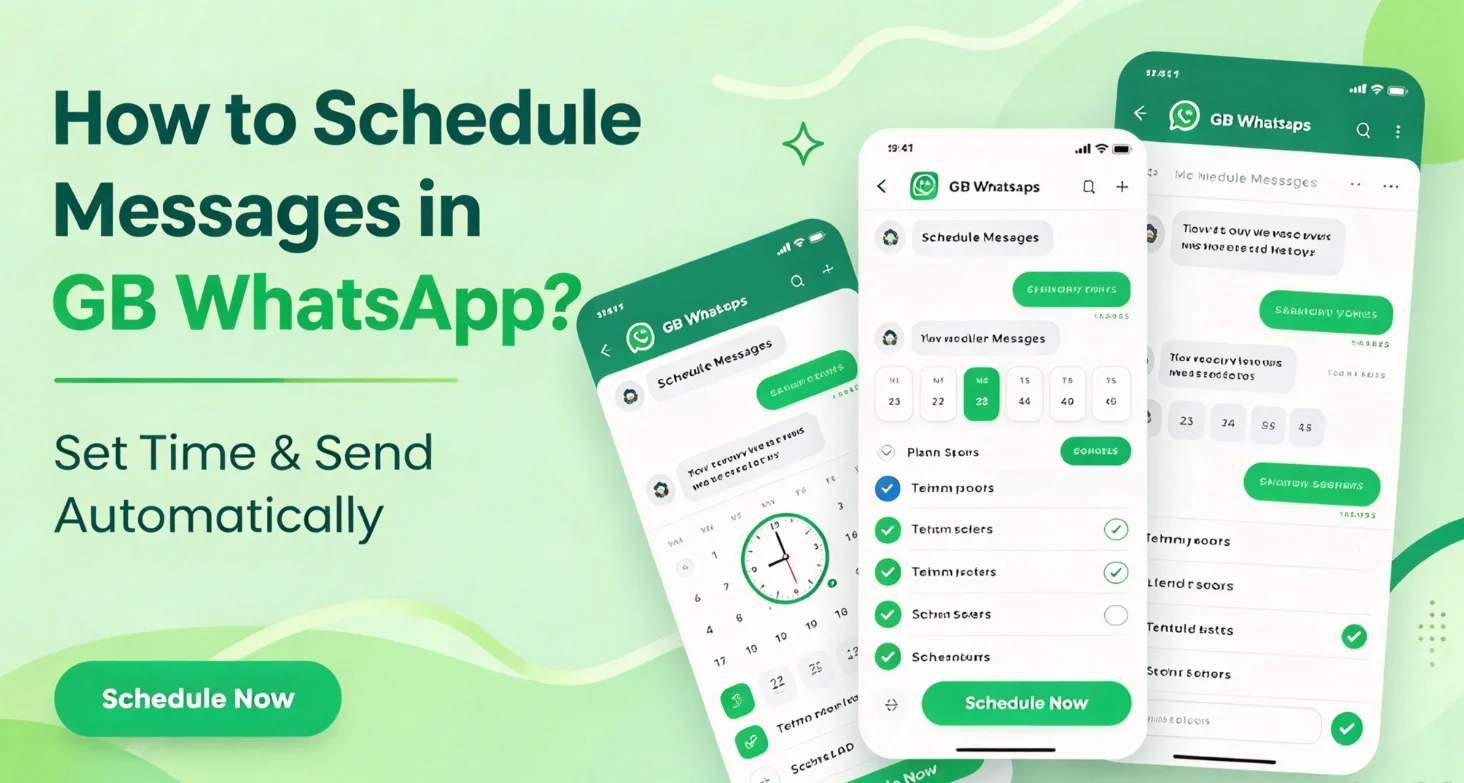
How to Schedule Messages in GB WhatsApp ?
Want to send a WhatsApp message at a specific time without remembering to do it manually? GB WhatsApp includes a message scheduling option that lets you prepare a message in advance and choose when it should be sent.
The exact menu name and location can vary between GB WhatsApp versions. In some builds, the scheduler appears after pressing and holding the send button, while others place it inside a menu or scheduling section.
Steps to Schedule a Message in GB WhatsApp
Setting up a scheduled message only takes a few steps.
1. Open the Chat
Launch GB WhatsApp and open the individual or group chat where you want the message to be sent.
2. Write Your Message
Type the message normally in the chat box. Check the wording before scheduling it, especially if it is a reminder, birthday message, or work-related message.
3. Open the Scheduling Option
Depending on your version, either press and hold the Send button or open the available chat menu and look for Schedule Message.
Some versions display a clock icon or use a slightly different name for the same function.
4. Choose the Date
Select the day when you want the message to be sent.
Make sure the selected date is correct before continuing. If your phone uses a different time zone while travelling, also check your device’s date and time settings.
5. Set the Time
Choose the hour and minute for delivery.
For example, you could schedule a birthday message for 9:00 AM or prepare a work reminder for the start of the day.
6. Confirm the Schedule
Review the message, date, and time, then tap Schedule, Save, or the equivalent confirmation button shown by your version.
The message should now appear in the scheduled-message list or show a pending indicator, depending on the build you use.
How to View Scheduled Messages
If you want to check messages that are waiting to be sent, open the scheduler or scheduling section in GB WhatsApp.
The location can differ between versions. Look for options such as:
- Message Scheduler
- Scheduled Messages
- Schedule
- Clock icon
From there, you can review pending messages and check their scheduled date and time.
How to Edit a Scheduled Message
Plans can change after you create a schedule. If your version supports editing, open the scheduled-message list and select the message you want to change.
You may be able to modify:
- Message text
- Date
- Time
- Repeat settings
Save the changes after reviewing the new schedule.
If your version does not provide an edit option, cancel the existing schedule and create a new one instead.
How to Cancel a Scheduled Message
To stop a scheduled message before it is sent:
- Open Message Scheduler or the relevant scheduling menu.
- Select the pending message.
- Choose Delete, Cancel, or the available removal option.
- Confirm the action.
Once removed, the message should no longer be sent at the scheduled time.
Can You Schedule Messages in Group Chats?
Yes, versions that provide the message scheduler can generally be used with both individual and group chats. The basic process is the same: open the conversation, prepare the message, select a future date and time, and confirm the schedule.
Can You Schedule Recurring Messages?
This depends on the GB WhatsApp build.
Some versions provide a Repeat option for recurring schedules, such as daily, weekly, or monthly messages. Other versions may only support one-time scheduled messages.
If your version includes Repeat, choose the frequency after setting the initial date and time, then confirm the schedule.
If there is no repeat option, create separate schedules for the dates you need.
What Can You Use Message Scheduling For?
The feature can be useful for simple situations where timing matters.
Birthday Messages
Prepare a birthday greeting earlier in the day and schedule it for the time you want it delivered.
Reminders
Schedule a reminder for an appointment, meeting, payment, or other planned activity.
Work Messages
If you regularly send updates at a specific time, you can prepare them ahead of time instead of stopping what you are doing later.
Travel and Time Zones
Scheduling can also help when you need to contact someone in another time zone. Check your phone’s local time before confirming the schedule.
GB WhatsApp Message Scheduler Not Working?
If a scheduled message does not send as expected, check the basic settings first.
Check Your Internet Connection
The app needs a working connection when the scheduled action is processed. Try switching between Wi-Fi and mobile data if the connection is unstable.
Check Battery Restrictions
Android battery optimization can restrict background activity. If GB WhatsApp is prevented from running in the background, scheduled actions may not work as expected.
Check Date and Time
Make sure your phone’s automatic date, time, and time-zone settings are correct.
Check the Scheduler Again
Open the scheduling section and confirm that the message is still listed. If it disappeared after an update, the feature may work differently in the newer build.
Check Your GB WhatsApp Version
Different releases can place the scheduler in different menus or provide different scheduling options. If you cannot find the feature, check the settings and menus available in your installed version.
Tips Before Scheduling Messages
Before relying on a scheduled message for something important:
- Check the recipient carefully.
- Review the message before confirming.
- Double-check the date and time.
- Make sure your phone has a working connection.
- Check battery and background restrictions.
- Test the scheduler with a non-important message first.
Because GB WhatsApp is a third-party modified WhatsApp client, features can vary between releases. The scheduler interface may therefore change after an update.
Frequently Asked Questions
Where is the message scheduler in GB WhatsApp?
Depending on the version, it may appear after pressing and holding the Send button or inside a menu labeled Schedule Message, Message Scheduler, or a similar option.
Can I schedule a message for a group?
Yes, supported versions can schedule messages for group conversations as well as individual chats.
Can I edit a scheduled message?
Some versions allow you to open a pending message and change its text or delivery time. If editing is unavailable, cancel the existing schedule and create a new one.
Can I cancel a scheduled message?
Yes. Open the scheduled-message list, select the pending message, and use the available Delete or Cancel option.
Does every GB WhatsApp version have the same scheduler?
No. The available options and menu locations can vary between builds. Some versions also support recurring schedules while others may only provide one-time scheduling.
Why didn’t my scheduled message send?
Check your internet connection, battery restrictions, device time settings, and whether the scheduled message is still present in the scheduler. If the problem began after an update, the newer version may have changed how the feature works.